How to Enable Two-Factor Authentication (2FA) in DirectAdmin
Purpose
This article explains how to enable Two-Factor Authentication (2FA) in DirectAdmin. Enabling 2FA adds an extra layer of security to your account by requiring a one-time verification code from an authenticator application whenever you log in.
Prerequisites
Before you begin, ensure that:
- You have an active DirectAdmin account.
- You can log in to your DirectAdmin dashboard.
- You have an authenticator application installed on your mobile device (e.g., Google Authenticator or Microsoft Authenticator).
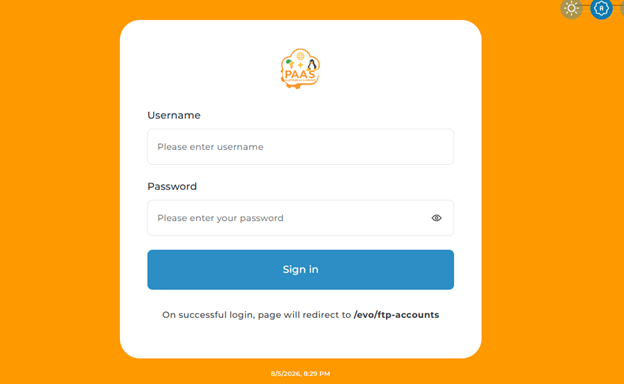
Step 1: Log in to DirectAdmin
- Open your DirectAdmin login URL.
- Enter your Username and Passwor
 d.
d. - Click Login


Step 2: Open Account Manager
- Once logged in, click User Profile.
- Under the General tab, navigate to Two-Step Authentication.
Image:
Step 3: Select Two-Factor Authentication
- Click the Two-Step Authentication tab.
- Click Generate Secret to generate a QR code and secret key for your account.
Image: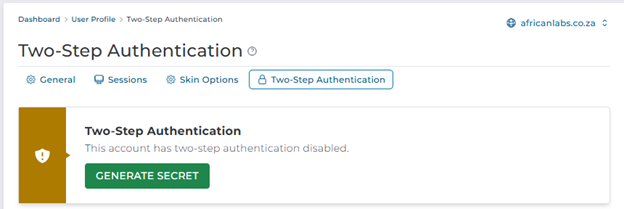
Step 4: Scan the QR Code
- Open your preferred authenticator application on your mobile device.
- Tap Add Account (+).
- Select Scan a QR Code.
- Scan the QR code displayed in DirectAdmin.
- The application will generate a six-digit one-time password (OTP).
- Enter the OTP into the Check one-time password field.
- Click Enable Two-Step Authentication.
Note: For security reasons, most authenticator applications do not allow screenshots while displaying QR codes or one-time passwords (OTPs). Therefore, screenshots of the authenticator application are not included in this article.
Image: 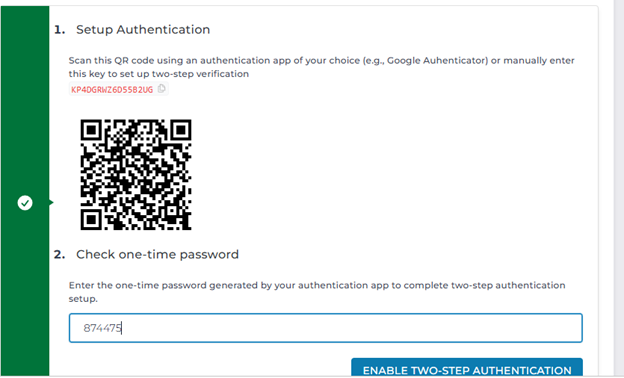

Step 5: Verify Two-Factor Authentication is Enabled
After successfully entering the verification code, DirectAdmin will confirm that Two-Step Authentication has been enabled. A Disable button will be displayed, allowing you to disable 2FA if required in the future.
Image: 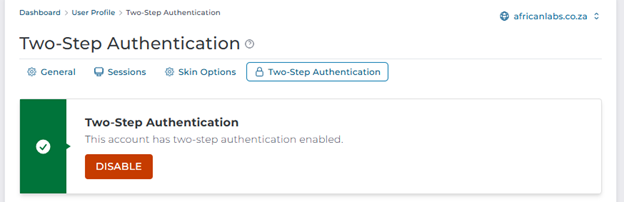

Expected Result
Two-Factor Authentication is now enabled on your DirectAdmin account. Each time you log in, you will be be prompted to enter:
- Your DirectAdmin password.
- A one-time verification code generated by your authenticator application.
Conclusion
You have successfully enabled Two-Factor Authentication (2FA) in DirectAdmin. This additional security measure helps protect your account from unauthorized access by requiring both your password and a time-based verification code during login.