How to view/respond to support tickets on PartnersHub portal
Step 1: Log in to the Client Area
- Use your credentials to access the Client Area.
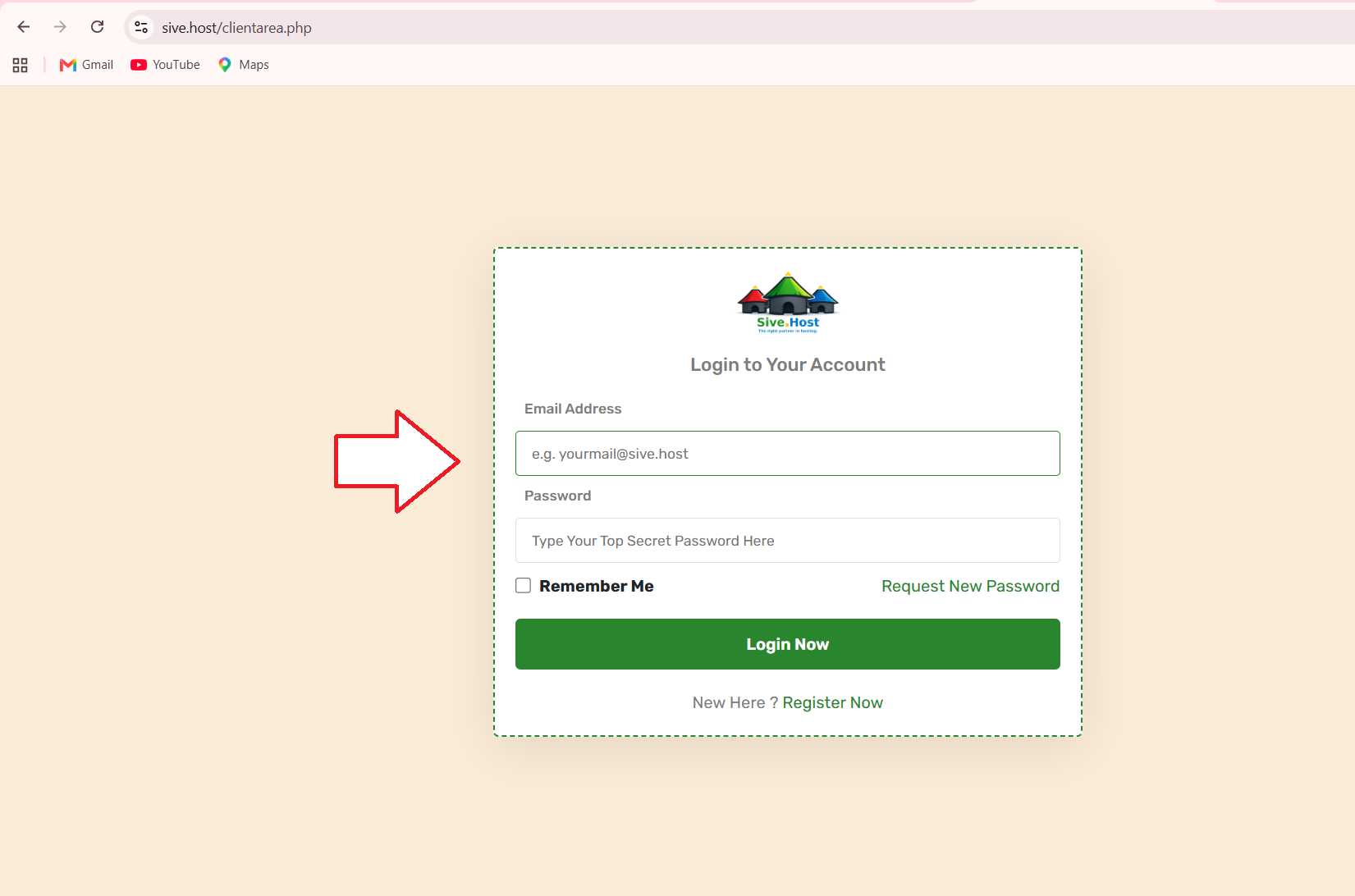
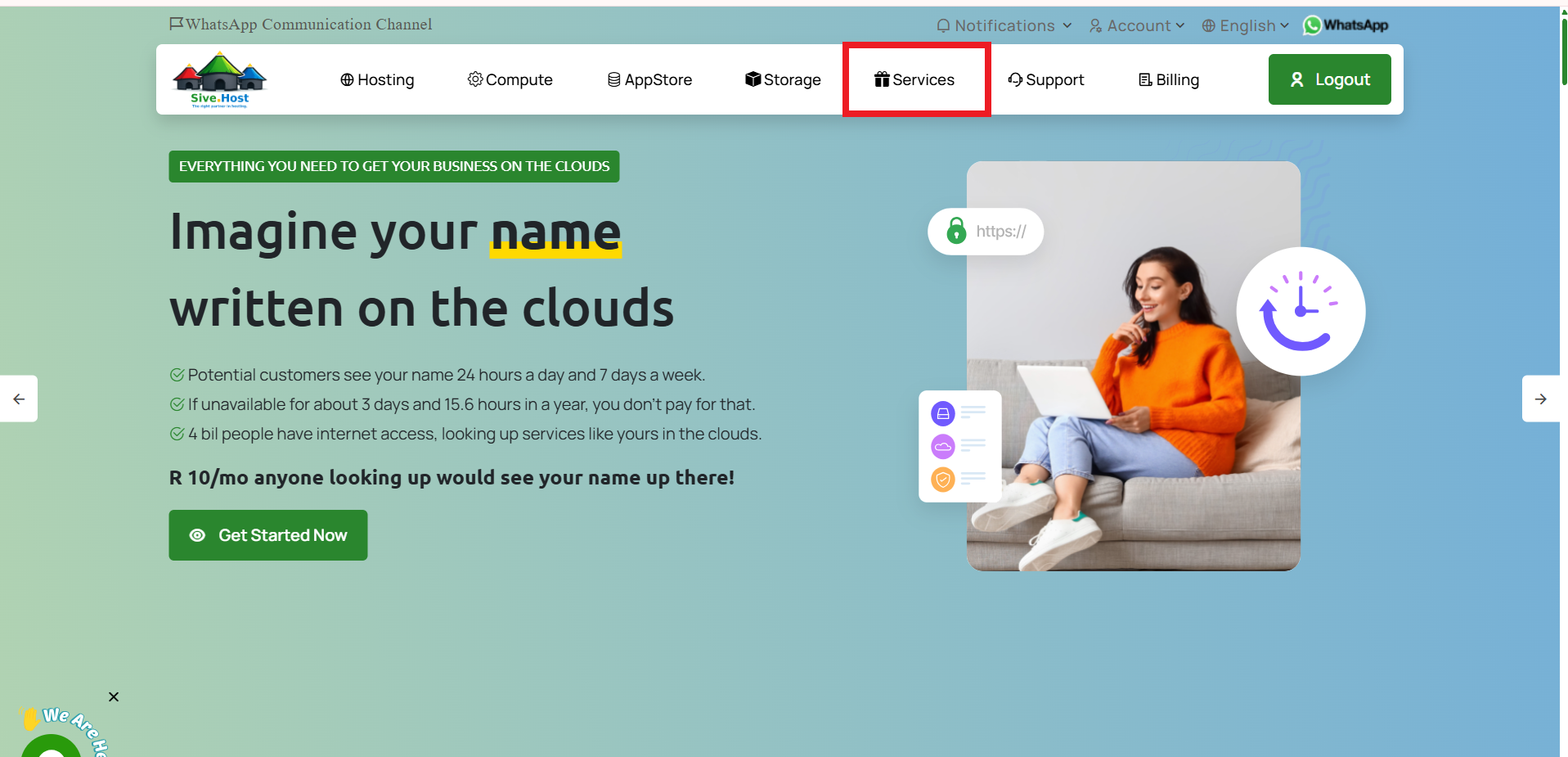
Step 2: Navigate to the Services Tab
- On the landing page, locate the Services tab in the navigation bar at the top.
- Click the services tab, and a dropdown menu will appear.
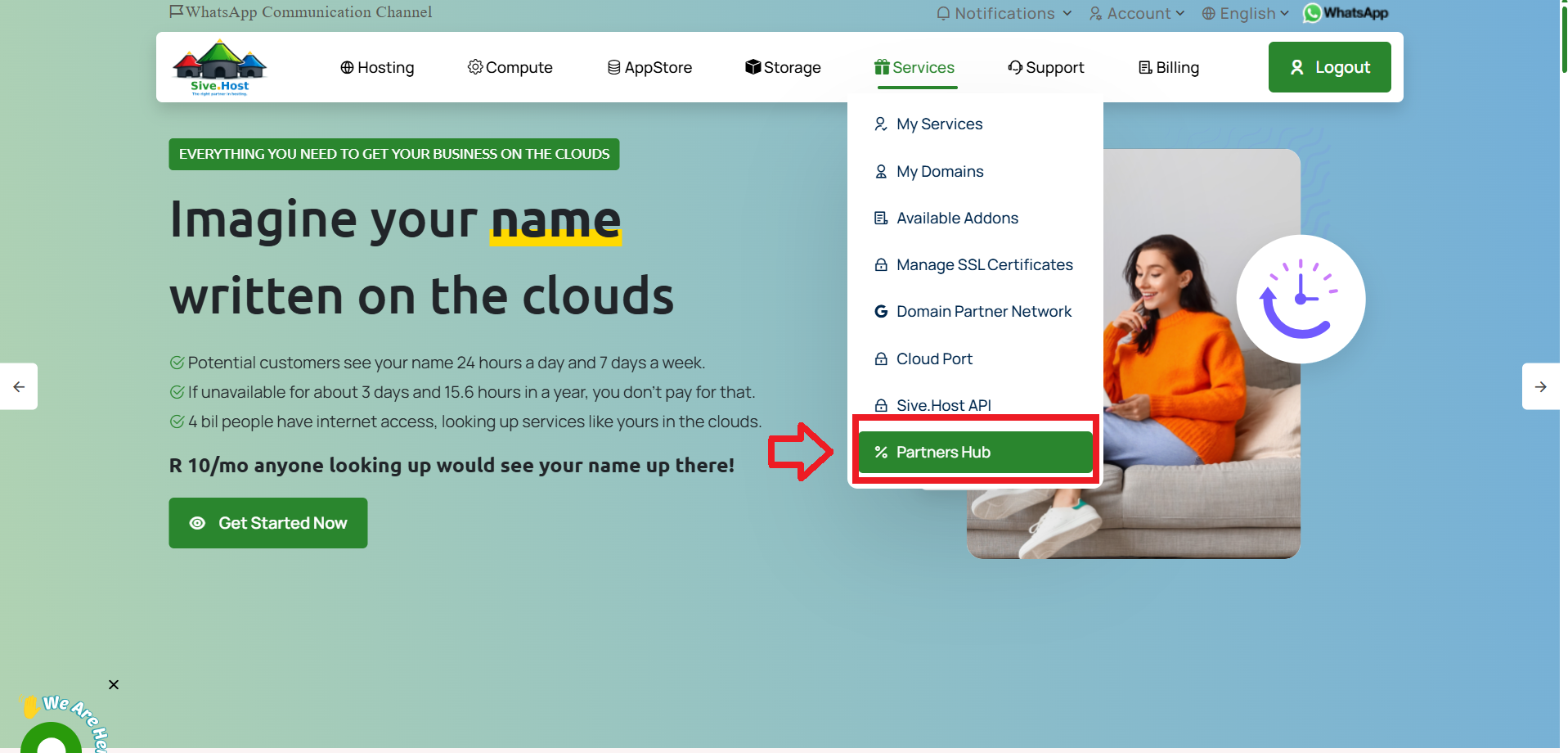
Step 3: Locate PartnersHub on the Menu
- From the menu, find the PartnersHub option.
- Click on it to proceed.
Step 4: Locate the Tickets Tab
- On the PartnersHub portal, find the Tickets tab in the navigation bar at the top.
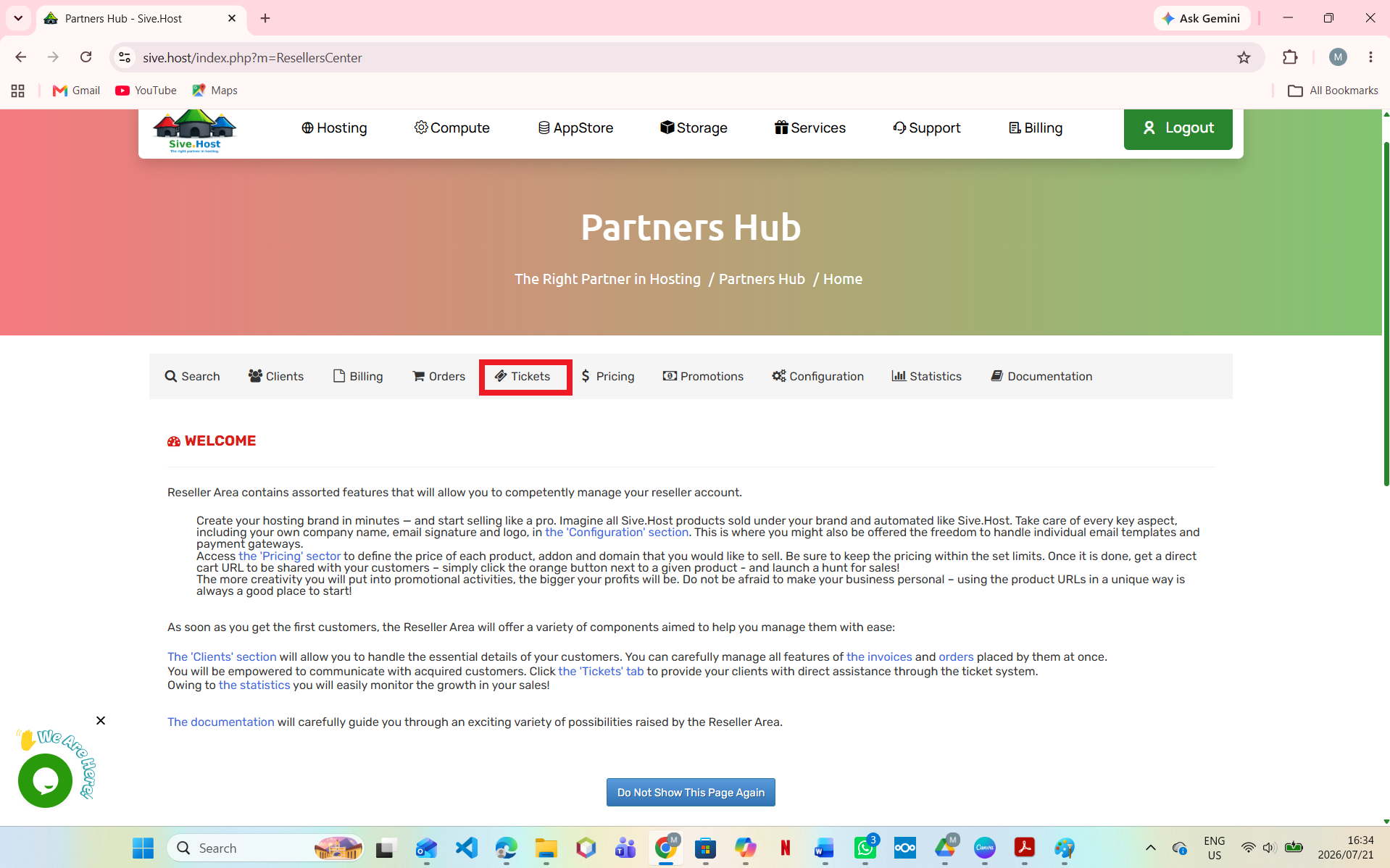
Step 5: Access the Tickets Section
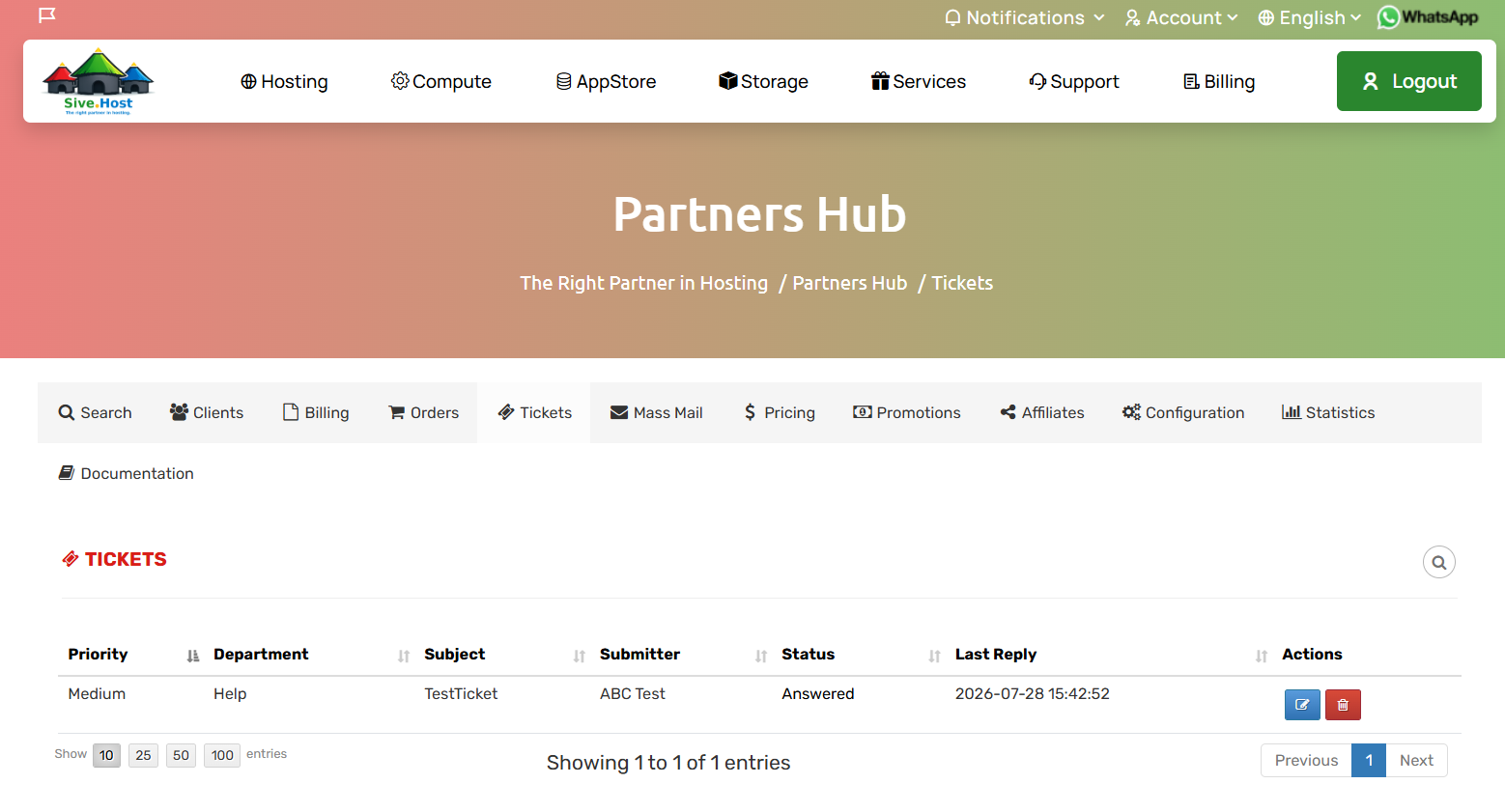
- To open the Tickets section, click on the Tickets tab.
- Here you will find a complete list of support tickets submitted by your customers through the WHMCS Client Area.
Step 6: Respond to Tickets
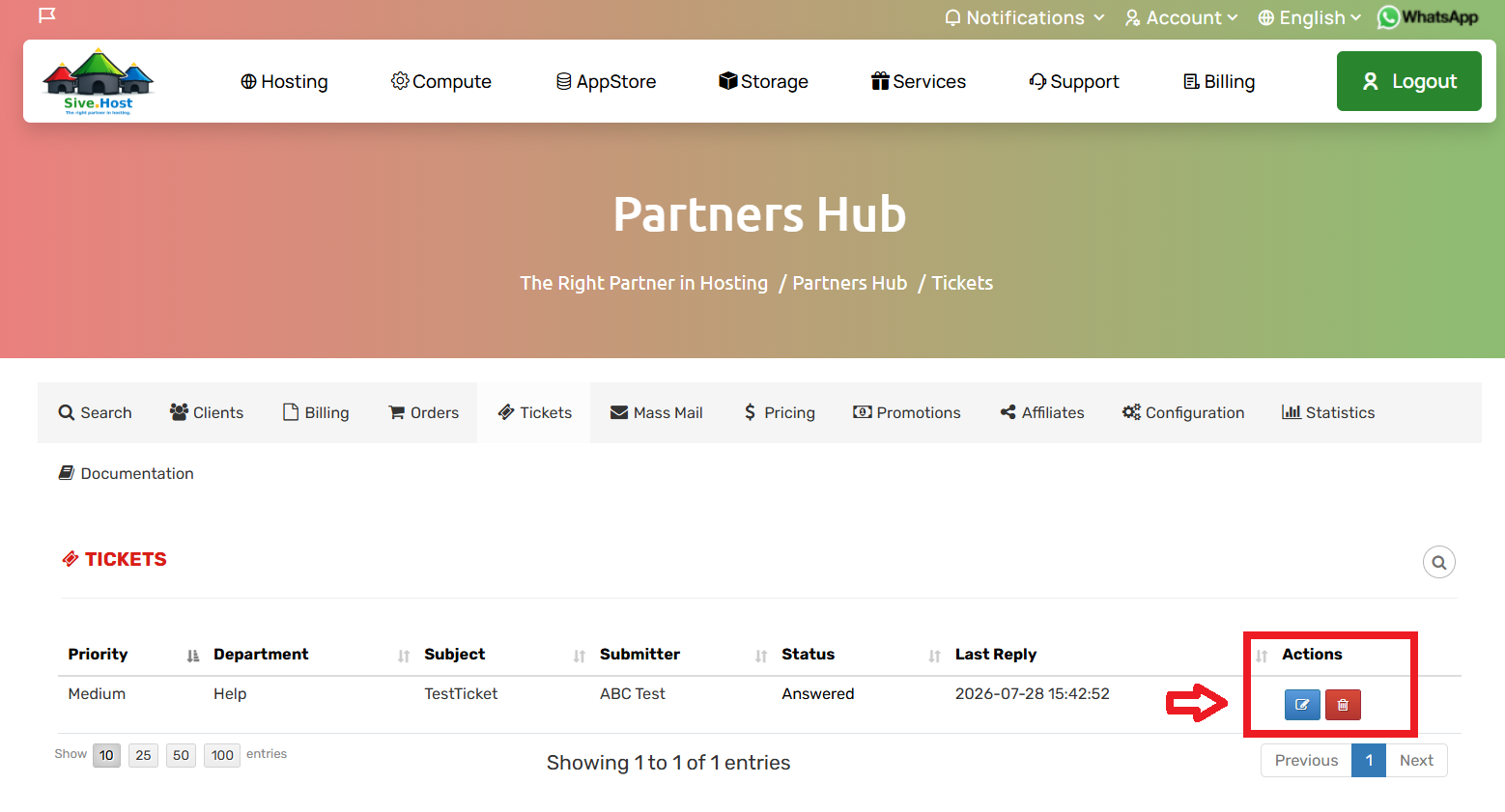
- To reply to a ticket, click the Edit icon under the Actions column.
- This will open the ticket details, allowing you to review the customer’s request and provide a response.
Step 7: Review and Respond to Client Tickets
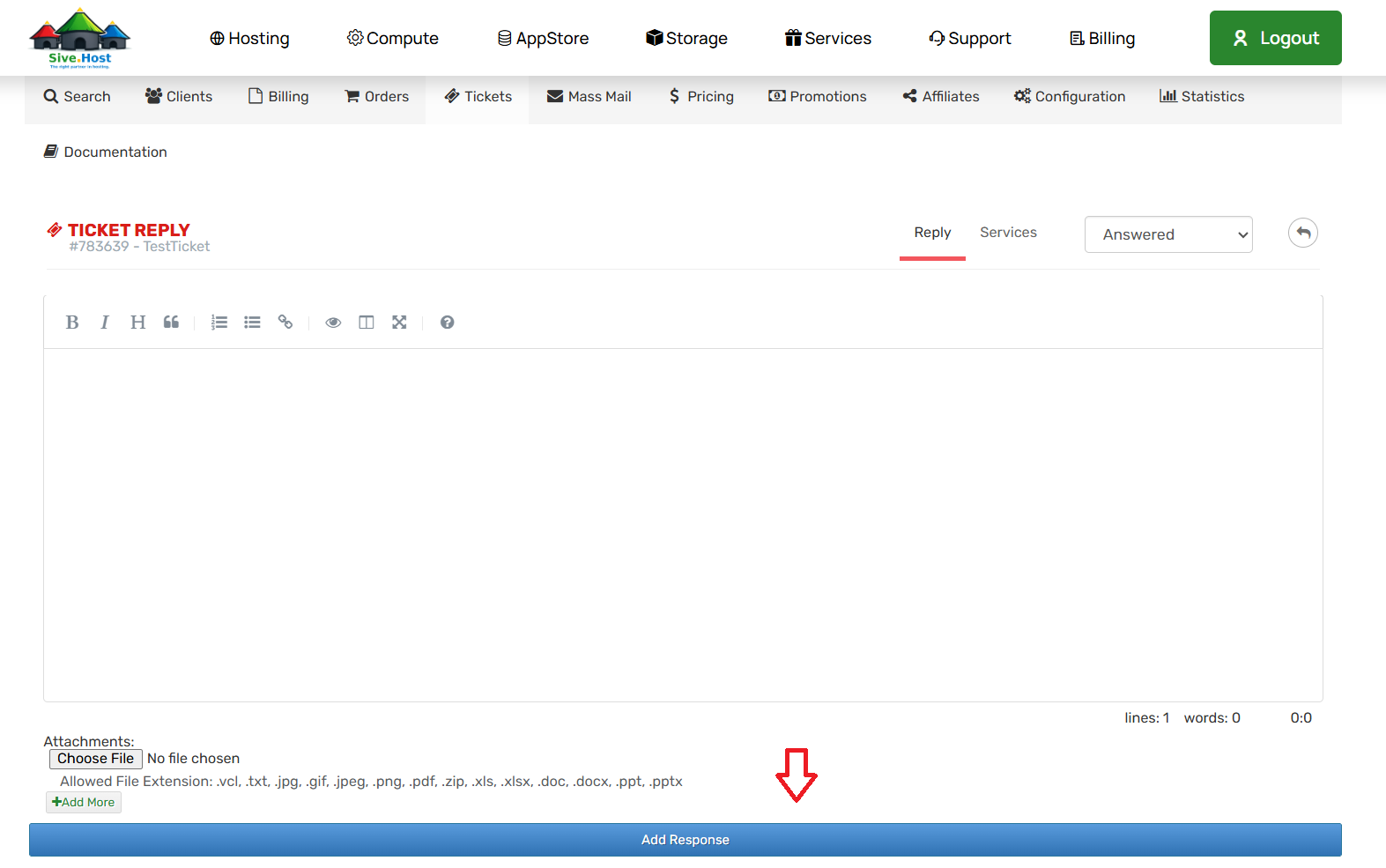
- On this page, you will see your clients’ enquiries and queries.
- To respond to a ticket, type your reply in the text box and click the Add Response button at the bottom to send it to the client.
Important Note:
- If you make a mistake in your response, do not edit the ticket.
- Instead, create a new response.
- Editing a ticket only changes the record on the admin side, but since tickets are also sent as emails, the client will not see the updated version.
Step 8: Ticket Status Updates
- After responding to a ticket, the system will return you to the overview page.
- You will notice that the status of the ticket changes to Answered.
Status Options Explained:
- Customer-Reply – The customer has responded, and the ticket is awaiting staff review
- Open – A new ticket has been created and is waiting to be assigned or worked on.
- Answered – Support has replied, and the ticket is waiting for the customer’s response.
- On Hold – Work on the ticket is temporarily paused, usually awaiting additional information or a dependency.
- In Progress – The support team is actively investigating or resolving the issue.
- Closed – The issue has been resolved, and the ticket has been completed and closed.
You have successfully viewed and responded to support tickets.